These 7 chapters cover files, Excel, CSV, and the web; reading them in a specific order is more effective than reading the book from cover to cover.
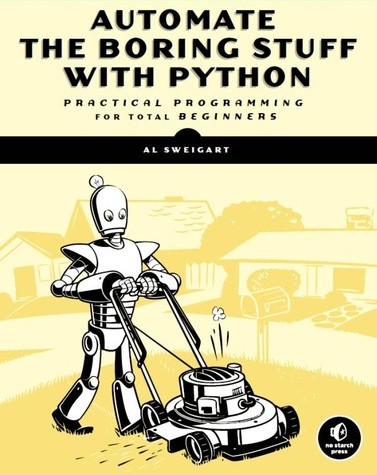
Automate the Boring Stuff with Python· Al Sweigart ·
Key Takeaways
- The third edition (May 2025), published by No Starch Press, is freely available online under a Creative Commons license
- Chapters 10, 11, 14, and 18 handle files and spreadsheets; Chapter 13 covers the web, including Playwright
- Three habits worth building: check file sizes first, back up before touching anything, and try an API before automating a browser
On the book's official website, Al Sweigart writes that the most wonderful part of programming is the sense of accomplishment when you see the machine do something useful. For Forward Deployed Engineers (FDEs), this moment often comes in the first week on-site at a customer: someone sends over a folder stuffed with Excel, PDF, and CSV files and asks whether anything can be done with it.
Automate the Boring Stuff with Python is now in its third edition, billed as "fully revised," published by No Starch Press in May 2025. The entire book can be read for free on the official website under the Creative Commons BY-NC-SA 3.0 license, and the site also provides a link to the publisher's print edition. The book has 24 chapters plus two appendices.
There is no need to read the whole book. Seven chapters map directly to the work of the early deployment phase: reading files, organizing folders, opening spreadsheets, converting formats, and scraping data from web pages. They won't help in a demo, but they are unavoidable in a real deployment.
Why a book about "boring stuff" suits FDEs
The effectiveness of an agent or RAG data pipeline depends on the data you feed it, and customer data is rarely neatly tucked behind an API.
The typical situation: Excel reports exported monthly by finance, contracts in PDF and Word format, or an internal web portal with no documentation at all. To get to the interesting parts, you first have to get past this hurdle.
Sweigart's book teaches exactly this part, and through concrete projects rather than theory. So treat the following 7 chapters as your first-week toolbox, and read them in order, starting from the basics.
| Chapter | Main content | Use on-site at a customer |
|---|---|---|
| 10. Reading and Writing Files | Paths, reading and writing, the shelve module | Reading all the files a customer sends over, saving temporary state |
| 11. Organizing Files | shutil, walking directory trees, zipfile | Batch-processing the folders customers throw at you |
| 18. CSV, JSON, and XML | Three text formats, stripping CSV headers, Excel to CSV | Normalizing data before it goes into a database |
| 14. Excel Spreadsheets | openpyxl, formulas, frozen panes, charts | Reading and modifying reports from various departments |
| 15. Google Sheets | Cloud spreadsheets | When the customer uses Google Workspace |
| 17. PDF and Word Documents | Office documents | Contracts, process documents, documents for RAG |
| 13. Web Scraping | requests, APIs, Beautiful Soup, Selenium, Playwright | Scraping data from web portals with no export feature |
Placing Chapter 18 before Chapter 14 is deliberate. Once you get used to the idea that CSV, JSON, and XML are just plain text, you realize that handling Excel is mostly about getting the data out of Excel.
Example: 40 files from 40 branch stores
Suppose the customer is a retail chain that sends over 40 Excel sales files, one per branch store. They want a single consolidated table to import into their analytics system. Doing it by hand means opening 40 files and copying 40 times, with at least one mistake guaranteed.
With three chapters from the book, this takes just a short script. Chapter 11 shows how to walk an entire directory tree and collect all 40 files, including those buried deep in subfolders. Chapter 14 uses openpyxl to read each worksheet, and two of its projects (census data analysis and updating a spreadsheet) are almost identical to this problem.
Chapter 18 writes the results into a CSV file, much like the Excel-to-CSV exercise at the end of that chapter. Combined, it looks like this; the example assumes each file has a header row at the top and the data is on the active worksheet:
import csv, os, shutil
from pathlib import Path
import openpyxl

SRC = Path('customer_data')

# 第 0 步:动任何文件之前,先备份原件
shutil.make_archive('original_backup', 'zip', SRC)

with open('combined.csv', 'w', newline='', encoding='utf-8') as out:
    writer = csv.writer(out)
    for folder, _, files in os.walk(SRC):      # 第 11 章:连子文件夹一起遍历
        for name in files:
            if not name.endswith('.xlsx'):
                continue
            wb = openpyxl.load_workbook(Path(folder) / name, data_only=True)  # 第 14 章
            ws = wb.active
            for row in ws.iter_rows(min_row=2, values_only=True):  # 跳过表头行
                writer.writerow([name, *row])   # 第 18 章:加一列文件名
The filename column at the start of each row is a small detail worth keeping. When the customer asks why the numbers for a particular branch look wrong, you can trace it straight back to the source file along that row, without reopening all 40 files.
On-site at a customer, the first thing to do is not to write loops. First, ZIP up the entire original folder, just like the backup project in Chapter 11, before touching any files.
Three ideas worth remembering
The first comes from Chapter 10: Sweigart says you can think of a file's contents as a single string, and that string could be several gigabytes. This is a reminder to ask the customer how big their files are before reading everything into memory. A script that runs fine on a sample file can still crash on a full year of export data.
The second is to back up before any batch operation. Batch operations on an entire directory tree are powerful, and precisely because of that, they can cause damage. When a script goes wrong, a ZIP of the untouched originals is the cheapest way to preserve the customer's trust.
The last comes from the order in which Chapter 13 introduces its tools: requests and an API example first, then Beautiful Soup, Selenium, and Playwright. On-site, this order should become a habit: first ask whether there is an API or an export button, then parse HTML, and only automate a browser when there is truly no other option.
Common mistakes when applying the exercises on-site
The most common mistake: testing the script on just two sample files and then running it directly on a full year of export data, reading everything into memory. First ask about file sizes and row counts, then do a trial run on a small folder.
The second mistake is diving straight into scraping the web portal, when the customer's users have had an export button all along and nobody thought to ask. One extra question during the discovery phase can save a week of writing Playwright code.
The last is not verifying results. After merging 40 files, the total row count of the CSV must equal the sum of the data rows in each file; if it doesn't match, don't send it to the customer.
Who should read it, and how to put it on your resume
If you write Python every day, skim Chapter 10 and go straight to Chapters 11, 18, and 14. If you come from a frontend or Java background, read all 7 chapters carefully in the order given in the table above. Chapters 15 and 17 can wait until the customer actually uses Google Sheets, or until you have a pile of contracts in hand.
When writing your resume, don't write "read Automate the Boring Stuff." Redo one of its exercises with public data, push it to GitHub, state in the README how many files you processed and how much time you saved, then distill it into a one-line achievement.
When an FDE job description mentions messy client data or legacy systems, this line shows recruiters that you've already done this kind of work.
On-site with a client, the first person to turn 40 Excel files into one clean table is often the one entrusted with the next project.
Was this article helpful?
Thanks for your feedback!